CentOS Installation On Virtual Box

Open Source Operating System

*tips for install package into linux/unix/windows.. must know step by step

1) install
Exp : install + samba + centos
2) Configure
3) Start Service
4) Test Service

Example :
      1)      #yum install samba
      2)      #nano /etc/samba/sub.conf
      3)      #/sbin/service sub start
      4)      Test from other pc(wiindows pc) using ip address server

Text Editor : nano, vi, uim, pico


How to install CentOS on Virtual Box

1)      Open/run your virtual box


2)      Move your cursor to new tab


3)      Next


4)      Write down your virtual os name and choose type of os and then click Next


5)      Choose your virtual RAM


6)      For the first time using virtual OS, you can choose start up with create new hard disk or can use existing hard disk if have. I choose create new hard disk.


7)      choose the type of file that you would like to use for the new virtual disk


8)      choose the type of file that you would like to use for the new virtual disk


9)      Virtual disk file location and size


10)   Finish create new hard disk


11)   Click start tab


12)    Welcoming interface


13)   Choose iso location


14)   Start


15)   Press enter to install


16)   Skip to scan media


17)   Next


18)   Select language


19)   Select the appropriate keyboard


20)   Yes


 21)   Select next if you new install CentOS. If you in mode advance, you can modified partition of hard disk


22)   Network configuration
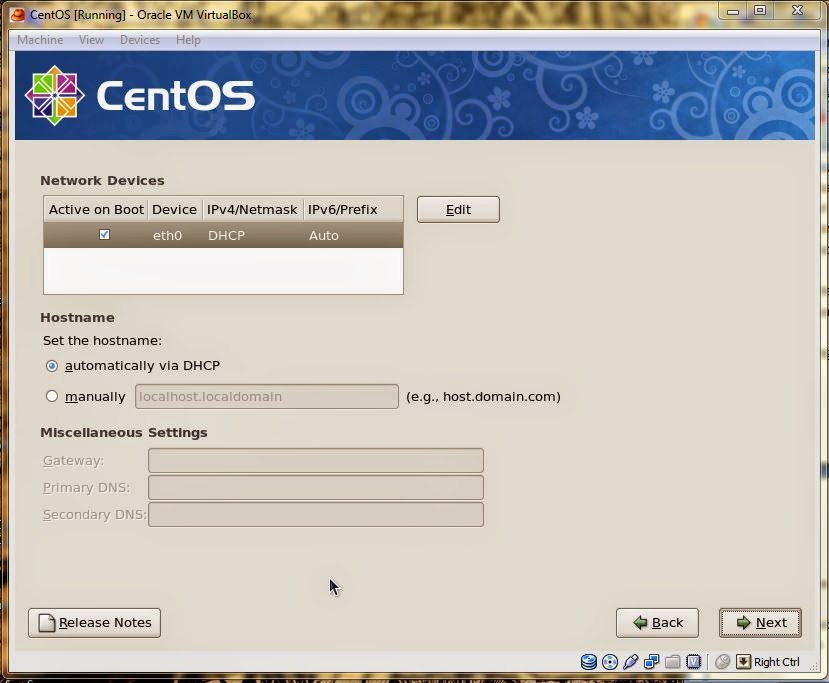


23)   Select time zone


24)   Write you admin (root) password. NOTE- you must remember you password


 25)   Additional package have to install on centos. Make sure you have internet access to update packages.


26)   Next


27)   Reboot after complete installation


28)   Forward


29)   Firewall


30)   SELinux


31)   Date and Time


32)   Create user


33)   Sound Card


34)   Finish


35)   Insert username


36)   Insert password


37)   Welcome to CentOS 5


Configure DLink Access Point

11/9/2014

1.    Connect LAN cable from port at Access Point (AP) to your PC

1    2.  Set IP address at your PC 
           a.       IP address : 192.168.0.50
           b.    Subnet mask 255.255.255.0
             c.       Default gateway : 192.168.0.50


3.       Insert default IP address AP at your browser
              a. IP 192.158.1.50.

        4.       Insert username and password :
a.       Admin
b.      Admin
            

        5. Wireless Setup
             a.       Set wireless name (SSID)
             b.      Wireless chanel (make sure the channel not clash with other one)


        6.       Set wireless security
       

       7.       Configure wireless security


             8.       Done..


            Configure Repeater

         1. Repeat step 1 – 4 at above
           2. Setup
                a. Wireless Mode : repeater


           3.       Press at Site Survey to find AP


            4.       Select AP and Connect


             5.       SSID change after select AP


Save & Quit.......
Done........


Network Security

10/09/2014

 3 ways to get information
1.       Ns lookup
2.       Whois
3.       Sosial engenering
      
       Password
1.       Make sure your passwork not related on your personal issues
Example: birthday, name your related ext..
2.       The best way your password has combine number, word and simbol
Example f5@1011, gm@il1011


Whois
1.       Get all information on internet
2.       Must secure to defent


IP Addressing

2/9/2014

IP Addresing
11)      Basic communication
22)     When to communication with other platform must have middle man to help communicated

   Example os >> tcp/ip (windows)<<>>appletalk(apple)<<>>ipx/spx(linux)

Exercise: what the result when two different ip ping with each other.

No
PC A
PC B
1
192.168.1.2
192.168.1.100

255.255.255.0
255.255.255.0
Answer
A PING B  = reply
B PING A  =reply


2
192.168.1.1
192.168.2.100

255.255.255.0
255.255.255.0
Answer
A PING B  = request times out
B PING A  = request times out


3
192.168.1.1
192.168.2.100

255.255.0.0
255.255.0.0
Answer
A PING B  =  reply
B PING A  = reply


4
192.168.1.1
192.168.2.100

255.255.0.0
255.255.255.0
Answer
A PING B  = request times out
B PING A  = request times out


Correction
Number 2 ) 192.168.1.1                 192.168.2.100
                       255.255.255.0              255.255.255.0
>>look at the third octel for network is different
>> so the result when a ping b is DU and b ping a also DU

Number 4)
192.168.1.1
192.168.2.100
255.255.0.0
255.255.255.0
>> RTO                                 DU

Hint
To determine ip in same group
Look at subnetmask is 0 so network in range 1 – 254
Example : 192.168.1.2 ping  192.168.10.10
                   255.255.0.0             255.255.0.0
result = reply

when subnet 255 network must same number

Report Projek #1

Projek Pertama
a)      OBJEKTIF
1)      Melakukan pengubahsuaian dan penambahbaikan rangkain  bilik  pentadbiran KISMEC
2)      Penambahbaikan  telefon dan data di dalam bilik pentadbiran.
3)      Melakukan kekemasan di bilik pentadbiran.

b)      TARIKH  DAN TEMPAT
Tarikh = 25/8/14
Tempat =  Bilik pentadbiran KISMEC
                                                Gambar 1.1 Bilik Pentadbiran KISMEC


Sebelum membuat pengubahsuaian bilik :


Selepas membuat pengubahsuaian bilik


Kerja-kerja yang kami lakukan seperti :
1)      Tambah splitter untuk mendapatkan 1 line yang sama dalam 2 telefon(voice)
2)      Membuat jack untuk mempelbagaikn  fungsi. Contoh  jadikan perantaraan kabel rj45 dan rj11.
3)      Membuat penambahan kabel simpanan sekiranya ada  penambahan telefon atau komputer.

4)      Membuat kekemasan pada setiap kabel yg ada.